
To see what I mean, take a look at the example I wrote a while back in the Validating Data Quick Start.
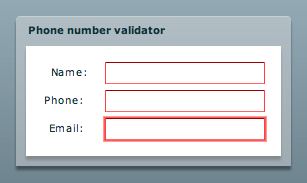
If you tab around that example, you may notice that you are probably doing something wrong (as indicated by the red borders around the form items that begin to appear) but you have no idea what you're doing wrong. In order to find out, you have to mouse over the form field. Only then does a tooltip appear to tell you what the problem is.
Needless to say, having the user switch input devices and exert additional effort in order to see a form validation error does not make for good ergonomics or usability.
A better alternative is to actually display the error message beside the control.
You can, of course, do this simply by having the error message in a label.
For example:
<mx:FormItem label="Your name">
<mx:HBox>
<mx:TextInput id="yourName" change="validateNotEmptyTextInput(yourName);" focusOut="validateNotEmptyTextInput(yourName);"/>
<mx:Label id="yourNameError" visible="false" text="Your name cannot be empty."/>
</mx:HBox>
</mx:FormItem>
The validateNotEmptyTextInput() method, in this example, is not a Flex Validator (as used in my Validation Quick Start), but a simple method.
For example:
private function validateNotEmptyTextInput(target:TextInput):void { (this[target.name+"Error"] as Label).visible = (target.text == ""); }
In the above example, I'm using a pragmatic naming convention to create a generic validation method that works with TextInput components. Nothing too spectacular visually, but usability-wise already better than the default Flex behavior.
Creating an error Label for each component, though, is not very practical. We can overcome this limitation and add a little visual flare by using the Flex error tooltip instead of a label.
Kyle Quevillon has a post in which he details how to use the Flex Tooltip Manager to create Error Tooltips. Referring to Kyle's post, we can alter the validateNotEmptyTextInput() method as follows:
// If the TextInput is empty, display an error message. if (target.text == "") { // Has the error message ToolTip already been created? // (A reference to created ToolTip instances is saved in a hash called errorMessageToolTips.) var toolTipExists:Boolean = errorMessageToolTips.hasOwnProperty(target.name); if (toolTipExists) { // Error message ToolTip has already been created, just show it. (errorMessages[target.name] as ToolTip).visible = true; } else { // Create the ToolTip instance. var pt:Point = new Point(target.x, target.y); pt = target.contentToGlobal(pt); var errorTip:ToolTip = ToolTipManager.createToolTip(errorMessages[target.name] + " cannot be empty", pt.x + target.width + 5, pt.y) as ToolTip; errorTip.setStyle("styleName", "errorTip"); // Save a reference to the error message ToolTip in a hash for later use. errorMessages[target.name] = errorTip; } } else { // TextInput is valid. Hide the error message if one exists. if (toolTipExists) { (errorMessageToolTips[target.name] as ToolTip).visible = false; } }
Where errorMessages is a hash of personalized messages:
errorMessages = { yourName: "Your name", yourEmail: "Your email", phone: "The phone number" }
Thus, we no longer need the Label component but there is a catch: we still need the HBox (or a container of some sort) if the TextInput is in a FormItem. Otherwise, contentToGlobal() returns an incorrect value when trying to position the error message.
So the new FormItem looks something like this:
<mx:FormItem label="Your name">
<mx:HBox>
<mx:TextInput id="yourName" change="validateNotEmptyTextInput(yourName);" focusOut="validateNotEmptyTextInput(yourName);"/>
</mx:HBox>
</mx:FormItem>
And the resulting validation errors both look nice and are functional.
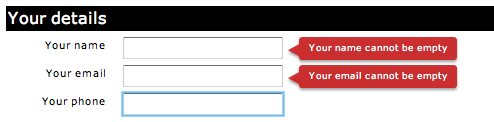
(In the above example, I modified the errorTip style to make the message boxes slightly shorter than usual by setting the paddingTop and paddingBottom properties to 2.)
To summarize, I'm not a big fan of the mystery meat validation error tooltips in Flex. Displaying validation errors on the form itself leads to better usability as users do not have to exert additional effort to find out what they did incorrectly.
Update: Someone has filed a bug about this very issue in the public Flex Bug and Issue Management System. I've left a comment on the bug and linked it to this post.
The Better form validation in Flex article by Aral Balkan, unless otherwise expressly stated, is licensed under a Creative Commons Attribution-Noncommercial 2.0 UK: England License.
Thanks for the tip (heh), Aral :-)
“Abstraction for the sake of abstraction is nothing but an ego trip for Real Programmers. For everyone else, it’s a pain the ass, lost productivity, and lost time.”
I SOOOOOOO agree.
That’s awesome!
However, if you resize browser windows the tooltips do not adjust to the new position of form elements.
Any idea how to sort it out?
Dan
Very useful !
However, I think there’s a slight error in this example code:
You use the errorMessageToolTips as a hash for the Tooltips created, but later on, when it’s time to retrieve the Tooltip or save it to this hash, you use the errorMessages hash instead:
// Error message ToolTip has already been created, just show it.
(errorMessages[target.name] as ToolTip).visible = true;
And
// Save a reference to the error message ToolTip in a hash for later use.
errorMessages[target.name] = errorTip;
Where it should be:
// Error message ToolTip has already been created, just show it.
(errorMessageToolTips[target.name] as ToolTip).visible = true;
And
// Save a reference to the error message ToolTip in a hash for later use.
errorMessageToolTips[target.name] = errorTip;
I had created a demo for my CForm component – http://flexed.wordpress.com/2008/01/02/component-cform-v10/…. This demo has an example of form validation. Check the source of the demo. Demo available @ http://www.udayms.com/flex/cform/cform.html
oops…. the url got screwed up… here it is…
http://flexed.wordpress.com/2008/01/02/component-cform-v10/
I can’t figure this out. I’m using the final version of flex 3 but I keep getting an error on “var toolTipExists:Boolean = errorMessageToolTips.hasOwnProperty(target.name);” It says that it’s null.
is anyone else getting this error or am I missing something
finally got it…here is a full example.
import mx.collections.ArrayCollection;
import mx.controls.ToolTip;
import mx.managers.ToolTipManager;
import mx.controls.Alert;
//private var errorTip:ToolTip;
private var myError:String;
private var errorMessageToolTips:Array;
private var errorMessages:Array;
private function doInit():void{
errorMessages = new Array();
errorMessages["yourName"] = “Your name”;
errorMessages["yourphone"] = “The phone number”;
errorMessageToolTips = new Array();
errorMessageToolTips["yourName"];
errorMessageToolTips["yourphone"];
}
private function validateNotEmptyTextInput(target:TextInput):void{
// If the TextInput is empty, display an error message.
if (target.text == “”){
// Has the error message ToolTip already been created?
// (A reference to created ToolTip instances is saved in a hash called errorMessageToolTips.)
var toolTipExists:Boolean = errorMessageToolTips.hasOwnProperty(target.name);
if (toolTipExists){
// Error message ToolTip has already been created, just show it.
(errorMessageToolTips[target.name] as ToolTip).visible = true;
}else{
// Create the ToolTip instance.
var pt:Point = new Point(target.x, target.y);
pt = target.contentToGlobal(pt);
var errorTip:ToolTip = ToolTipManager.createToolTip(errorMessages[target.name] + ” cannot be empty”, pt.x + target.width + 5, pt.y) as ToolTip;
errorTip.setStyle(”styleName”, “errorTip”);
// Save a reference to the error message ToolTip in a hash for later use.
errorMessageToolTips[target.name] = errorTip;
}
}else{
// TextInput is valid. Hide the error message if one exists.
toolTipExists = errorMessageToolTips.hasOwnProperty(target.name);
if (toolTipExists){
(errorMessageToolTips[target.name] as ToolTip).visible = false;
}
}
}
Thanks for the workaround !!! I was starting to go crazy with my tooltip not EXACTLY where i wanted it to be ! :) Saved my day !
i was talking about the HBox workaround (HBox word has been removed from previous post)
Your point about the red borders not being enough information is a good one, but what if your form is complicated with about 10 or 15 fields? You can’t display them all (especially if the page just loaded). It’d be good if an error tip only displayed like this for the component that currently has the focus.
abstraction for those that know what they’re doing saves a lot of time and money. Real programmers know that…
Hi, send me tutorial of Flex?
thank you
Leandro
Thanks!!! This is good stuff.
Abstraction??
This won’t work for large forms. A more sophisticated solution is needed.
Abstraction also adds scalability to a solution–and as “Hmm” pointed out this “simple” solution won’t scale to large forms. My plug for “complex” yet “elegant” solutions…
Thanks a lot for this tip, but you have to write :
var toolTipExists:Boolean = errorMessageToolTips.hasOwnProperty(target.name);
before
if (target.text == “”)
if not, it can’t work because var toolTipExists doesn’t exist !
else
{
// TextInput is valid. Hide the error message if one exists.
if (toolTipExists)
{
(errorMessageToolTips[target.name] as ToolTip).visible = false;
if i put the form in the TitleWindow, when i drag the window the toolTip is not following the window, how to manage this situation?
This is fine for small forms like this.
But what’s needed is error tips that optionally display for a few seconds, and disappear automatically. For large forms/screens often present in APPLICATIONS (not little WEBSITE type forms like this), this would improve usability massively. In this case, error tips should also stay up for the ACTIVE field, just like the example here, but only for the field that has focus. This should all be configurable through Flex property settings…
So options would include:
1) Default Flex behavior
2) Permanent error tips, like this blog has
3) Temporary error tips, which show for a few seconds but revert to look like the Flex default after that time has expired (mouse-over should still show the field again like it does by default)
4) Permanent error tips for the FOCUSED component only (this option would be compatible with both 1 and 3)
And I realize this level of flexibility isn’t trivial, which is why it really needs to be in Flex 4 and not on blogs.
Hi,
I just added the capability to the validate() method to show the error message into a ToolTip when typing. As I’m not a Flex expert, maybe there is a better way to do that.
You should add to your class a ToolTip var named tmpToolTip, to work correctly.
Here is the code:
// Helper method. Performs validation on a passed Validator instance.
// Validator is the base class of all Flex validation classes so
// you can pass any validation class to this method.
private function validate(validator:Validator):Boolean
{
// Get a reference to the component that is the
// source of the validator.
var validatorSource:DisplayObject = validator.source as DisplayObject;
// Suppress events if the current control being validated is not
// the currently focussed control on the form. This stops the user
// from receiving visual validation cues on other form controls.
var suppressEvents:Boolean = (validatorSource != focussedFormControl);
// Carry out validation. Returns a ValidationResultEvent.
// Passing null for the first parameter makes the validator
// use the property defined in the property tag of the
// tag.
var event:ValidationResultEvent = validator.validate(null, suppressEvents);
// Supress the old tooltip
if(tmpToolTip != null && !suppressEvents) {
ToolTipManager.destroyToolTip(tmpToolTip);
tmpToolTip = null;
}
// Show the tooltip with the validation error message
if(!suppressEvents && (event.type == ValidationResultEvent.INVALID)) {
var point:Point = validatorSource.localToGlobal(new Point(0,0));
tmpToolTip = ToolTipManager.createToolTip(event.message, point.x+validatorSource.width+5, point.y) as ToolTip;
}
// Check if validation passed and return a boolean value accordingly.
var currentControlIsValid:Boolean = (event.type == ValidationResultEvent.VALID);
// Update the formIsValid flag
formIsValid = formIsValid && currentControlIsValid;
return currentControlIsValid;
}
Thanks Aral! Exactly what i was looking for.
In case anyone is curious about the errorTip style ( ‘errorTip.setStyle(”StyleName”, “errorTip”); )
it’s defined by the framework ( http://livedocs.adobe.com/flex/3/html/help.html?content=tooltips_5.html )
Hey,
This is a good solution to the bad-form-problem.
But its unusable for big forms since the tooltips dont scroll with the rest of the form.
Is there already a solution to this problem out there?
Hey,
You did with custom validation by (if (target.text == “”)). But the Validator component has ample feature like zip code,Number etc…,I trying to use Validator in conjunction with your tool tip example,I end up with default tool tip generated by Validator component, is there any possibilities to remove from stack.
[...] This post by Aral Balkan shows how you can get those “hovering” tool-tip error messages to display inline, as the user fills out the form: http://aralbalkan.com/1125 [...]
The link: “Kyle Quevillon has a post in which he details how to use the Flex Tooltip Manager to create Error Tooltips. ” doesn’t work, any idea where Kyle has moved his entry to?
Here is the link, I found it after some digging….
http://blog.flexmonkeypatches.com/2007/09/17/using-the-flex-tooltip-manager-to-create-error-tooltips-and-position-them/
Hey bitch, the Link http://blog.739saintlouis.com/2007/09/ is empty. put the source don’t try to be so smart
My, my, aren’t we an imaginative comment poster? Afaik, BT owns the patent for hyperlinks so I’d take the issue up with them. (PS. “asshole” has two S’s in it; learn to spell!)
Thanks again for the code. I built this functionality, with a few changes, into a component (extending PromptingTextInput from flexlib) for anyone to use.
Hope it helps someone.
http://toddrothe.com/blog/?p=14
oops. posted wrong url for that component.
http://toddrothe.com/blog/show-error-on-form-field-text-input-or-show-me-where-it-hurts/
Great post, but sometimes you don’t have room to put error tool tips off to the side. That is why I created thinner error tool tips tonight. Check them out here:
http://www.tonyamoyal.com/blog/?p=26
[...] is, heb ik zelf enkele verbeteringen proberen aan te brengen, voortbouwend op de informatie die Aral Balkan (1) en Kyle Quevillon (2) op hun website hebben [...]
Hi,
Nice tutorial. to expand your code is to build custom validation over multiple inputs, but placing errors in a single place. Reading your article and many more, I have written a nice article on this. You can find this at my blog:
Multiple input validation
kind regards,
Marc de Kwant
Hey Anal, good idea but that’s not flexible enough.
Hi,
Very nice article. I myself have made a nice addition to this. It is a method to validate multiple inputs within the provided framework. But not using a tooltip, but a label to present errors.
http://dekwant.eu/?p=73
Kind regards,
Marc
Sorry about the double post. Kindly remove it please.
Mr. Aral, how to make a focus form like this?
———————————————–
| Name |
———————————————–
———————————————–
| Address |
———————————————–
When i click Name Form text “Name” will disappear, but if im not write anything in Name form and move click to Address Form. Text “Name” will appear again…
Pliss how to make that function?
Add my skype : ayub.imanullah
thx..